
Basics: SidebarUpdated 4 months ago
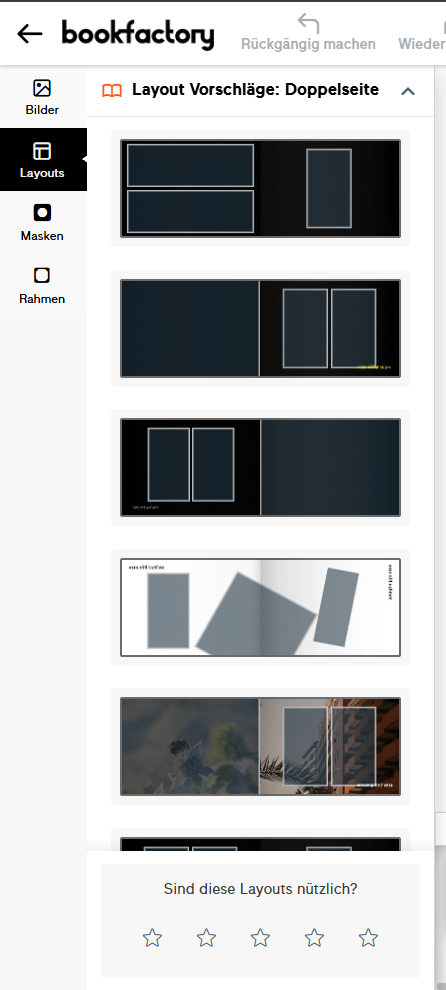 | In the left-hand sidebar of the Bookfactory online editor, you can insert images, use pre-designed layouts and apply masks or photo frames. If you have created a project from a template, you will also see the ‘Backgrounds’ and ‘Clipart’ sections.
The features are explained in detail below. |
Photos
You can add photos via
- Computer
- Smartphone
- My Photos
- Google Photos
- The various options are explained here
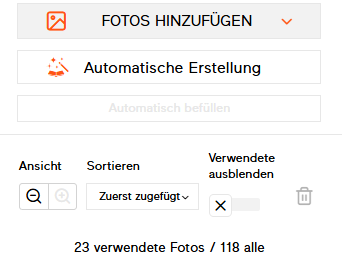
- The ‘Automatic Creation’ option replaces the existing design with the Smart Layout.
- You can enlarge or reduce the size of the linked photos
- The photos can be sorted by filename, upload date or creation date, and photos used in the project can be hidden
Layouts
You can choose from pre-designed layouts featuring up to 5 photos per page.

The online editor automatically suggests layouts for the front or back. Thanks to the preview function, you can see straight away how the layout looks with your photos. You can click on it if you want to use it (don’t worry, you can use ‘Undo’ to go back to your previous layout)
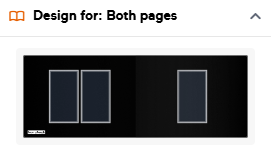

To apply a layout, you can either click on the layout you want in the sidebar and then click on the page, or drag it onto the page using your mouse.
Masks and frames
Masks are divided into Standard and Vintage; frames To apply masks, drag the mask you want onto the photo in your project.
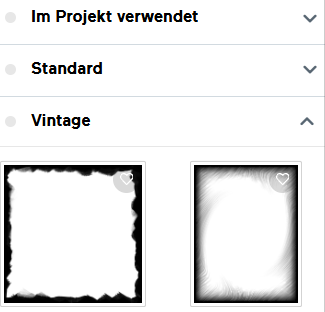
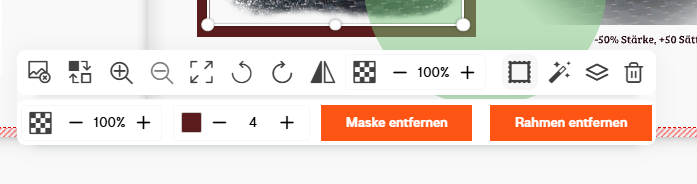
To remove a mask or a frame, you can click on the photo, which will open another menu.
Clicking on ‘Masks and Frames’ adds another row to the menu. Here you can adjust the thickness, transparency and colour of the photo frame, or delete the frame and mask. The photo itself remains unchanged.
Cliparts
Clipart images are pictures, with or without transparency, that match the theme of your template. You can position them however you like. However, they cannot be edited and do not have masks or borders
Backgrounds
Backgrounds can be placed by dragging the mouse. If you drag the background to the centre of the spread, you set the selected background for the entire spread.
Double-clicking on the page opens the background menu.

You can enlarge or reduce the background image, rotate it, flip it, adjust its transparency, delete it, or apply it to all double-page spreads in your project. Newly added double-page spreads do not automatically have this background.