
Online editor basics: photosUpdated 4 months ago
You can drag your images into the frames using the mouse. When you click on the image, a context menu appears below the photo
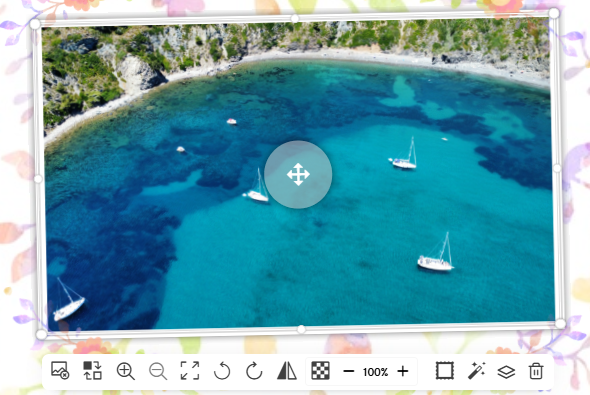
From left to right, here are the available options:
- Remove the photo from the frame
- Replace the photo
- Enlarge the photo
- Reduce the photo
- Adjust the frame to the image
- Rotate the photo to the left (only the photo, not the frame)
- Rotate the photo to the right (only the photo, not the image area)
- Flip the photo
- Adjust transparency
- Edit the frame
- Add an effect to the photo
- Edit the photo layer
- Delete the entire object (photo and image area)
The ‘Edit frame’ and ‘Photo effects’ options come with an additional context menu:
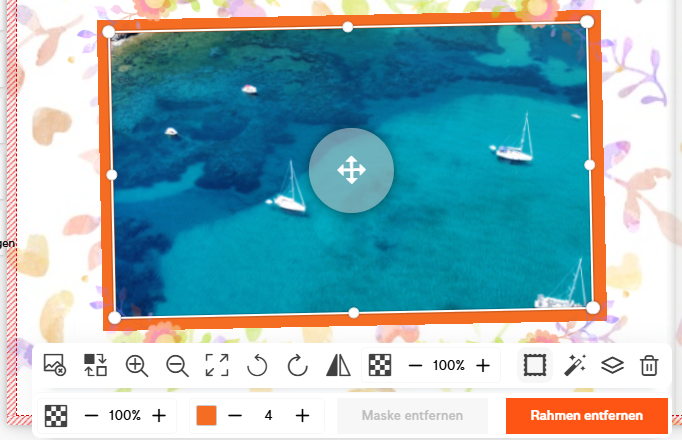
Frame effects: here, you can adjust the transparency, colour and width of the frame
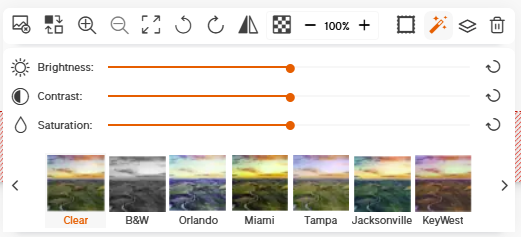
Photo effects: here you will find simple image editing options as well as predefined effects that you can apply to your photo. By default, “Remove” is selected. If you wish to reset the effect, simply select it again.