
Basic function: Delete/Add pagesUpdated 8 months ago
The Bookfactory design software offers several options for adding additional pages. Below are the three options. At the bottom, you will find instructions for removing pages.
Adding
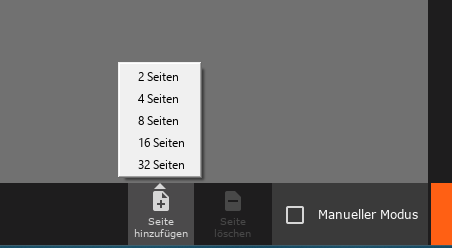
1. Adding multiple pages – Page overview
In the page overview, you will find ‘Add page’ in the bottom bar. Here you can select how many pages you want to add. If you have not actively selected a page, they will be added after the current last page, otherwise they will be placed directly behind your selected page.
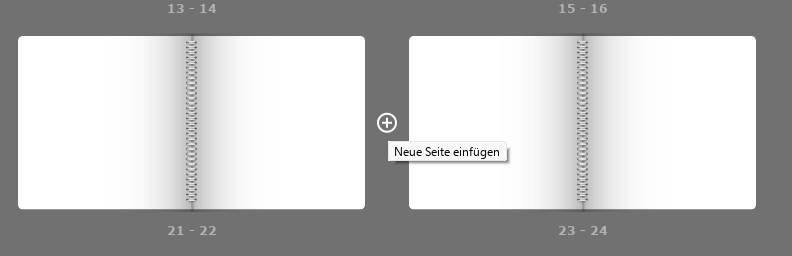
2. Add single pages – page overview
If you move the mouse between two pages in the page overview, a plus sign will appear. Click here to insert a single double page.
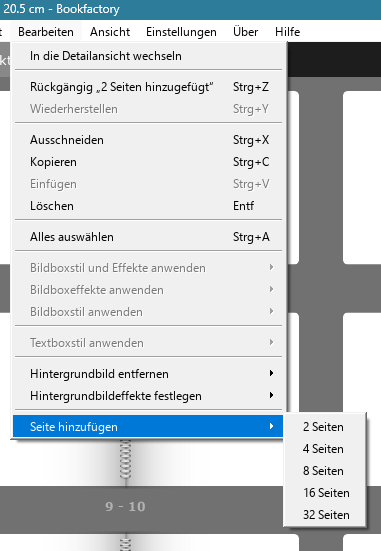
3. Add multiple pages - Page view and overview
Whether you are in the page view or overview, you can also add pages under ‘Edit’. The difference here is that in the overview, you may have to select a page if you do not want to insert the new pages at the end of the project. In the detail view, this is the current page and the new pages follow it.
Removing
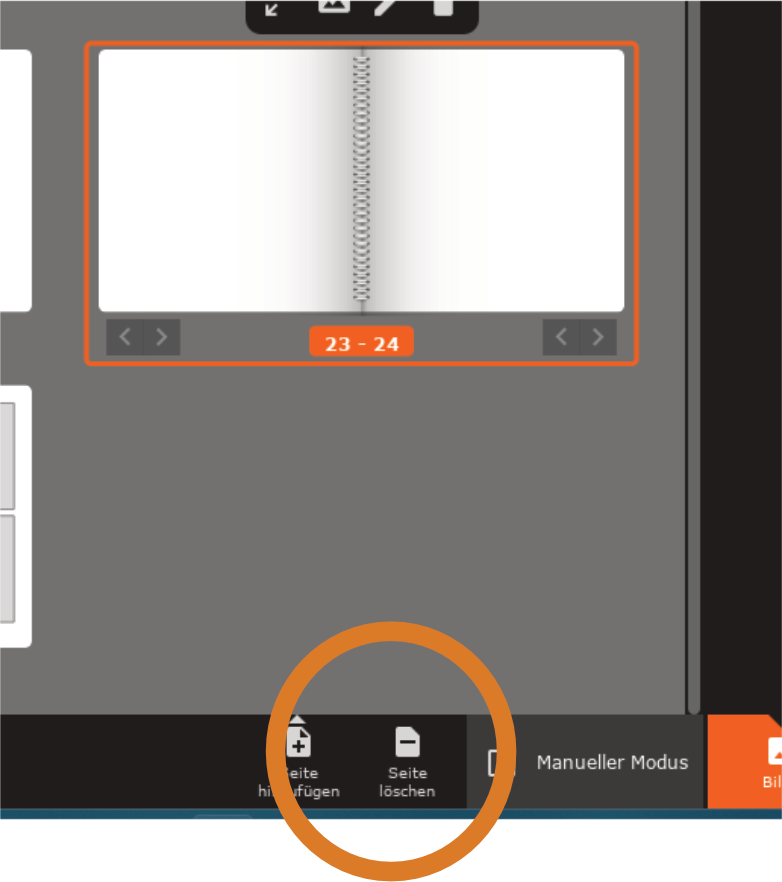
If you have one or more pages active in the overview and not the minimum number of pages, the delete function appears.
Options for removing multiple pages at once
You can use Ctrl and mouse click to select multiple different pages, Shift and mouse click to select a series of pages, or left mouse button pressed to move across multiple pages to delete a series of double pages.
In addition to the delete function, you can also use the Delete key on your keyboard.
Please note: Deletion only works up to the minimum number of pages, so you may need to select fewer pages.